Shopify product videos
Shopify product videos, made from the product page
Copy the address of any product in your Shopify store and paste it here. The app reads that page and your store's product list, and in about 5 minutes you have 4 short videos with your photos, product names and prices. Further down is where to put it once it's made, in the store and on its social accounts.
Written by Masab Farooque, who builds and runs UrlToReel · Updated
How to make a video from a Shopify product page
Here's the whole process with one product, Graza's olive oil mayo. These are screenshots I took while making it, not mockups.
- Step 1
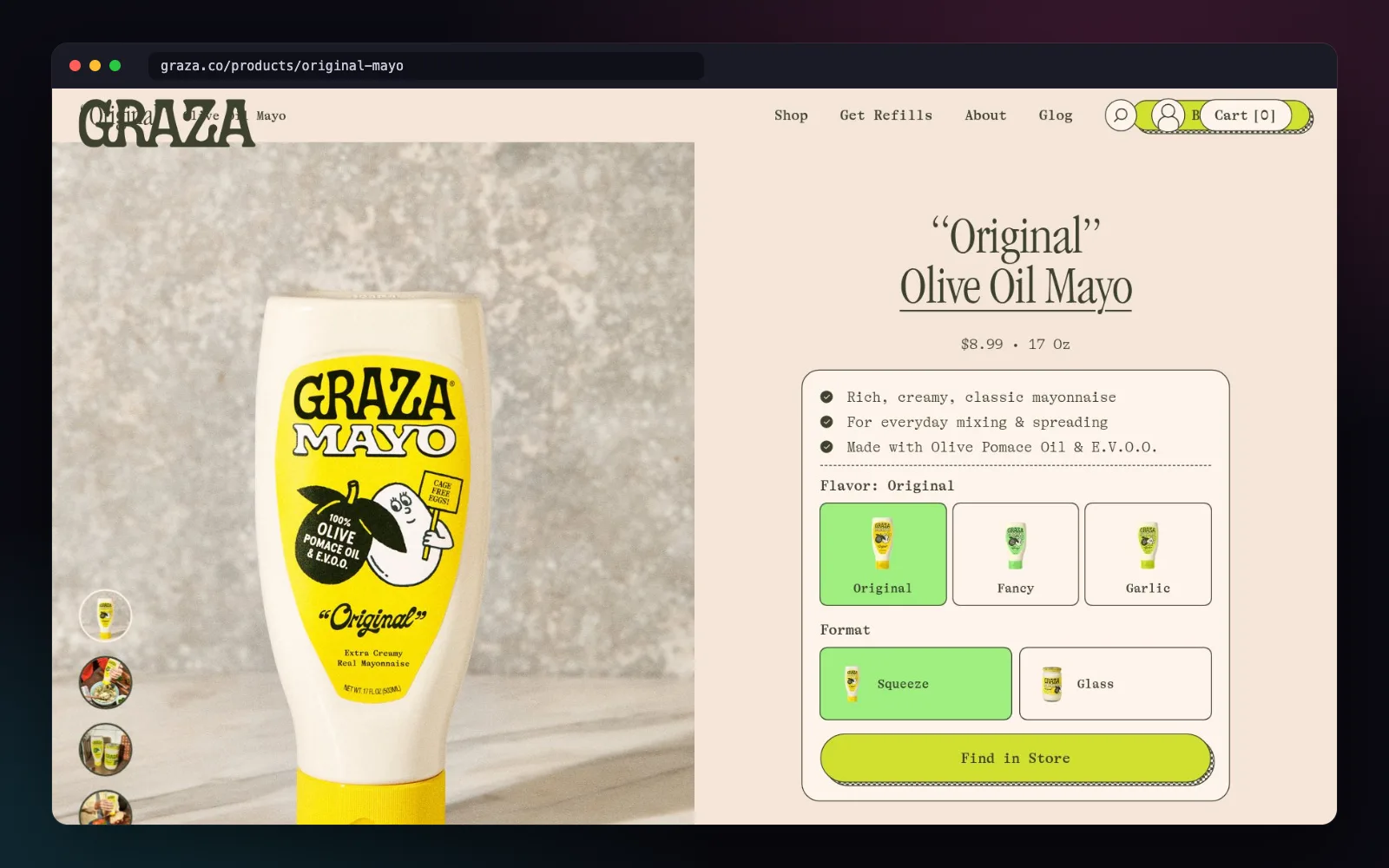
Copy the product link
Open the product in your store, on the page a shopper sees, and copy the address from the browser bar. On Shopify it looks like yourstore.com/products/your-product.
- Step 2
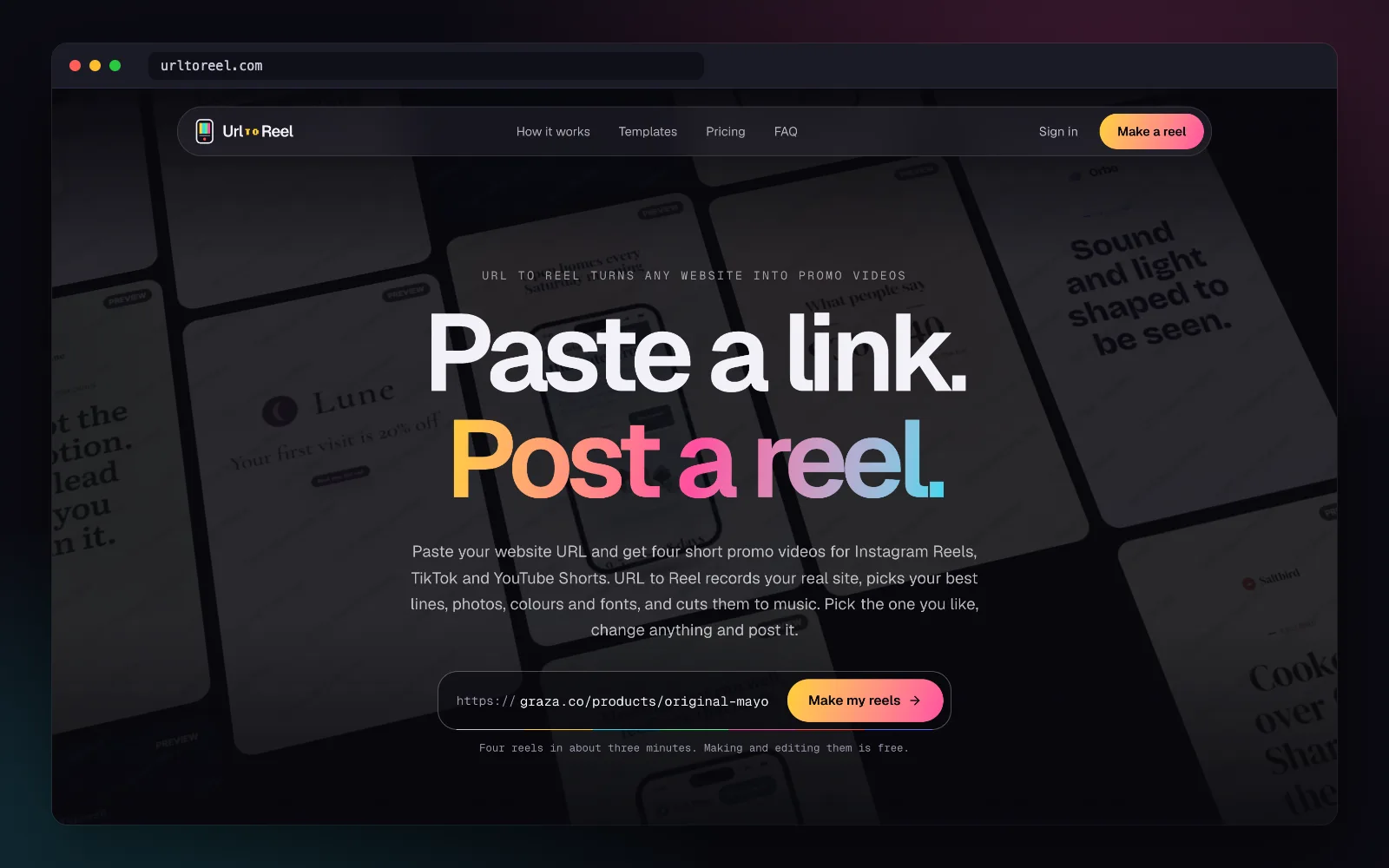
Paste it into UrlToReel
Paste the link on the home page and press Make my reels. Then pick a shape: Reel for Instagram, TikTok and Shorts, or Square post and Feed post for your product page and feed.
- Step 3
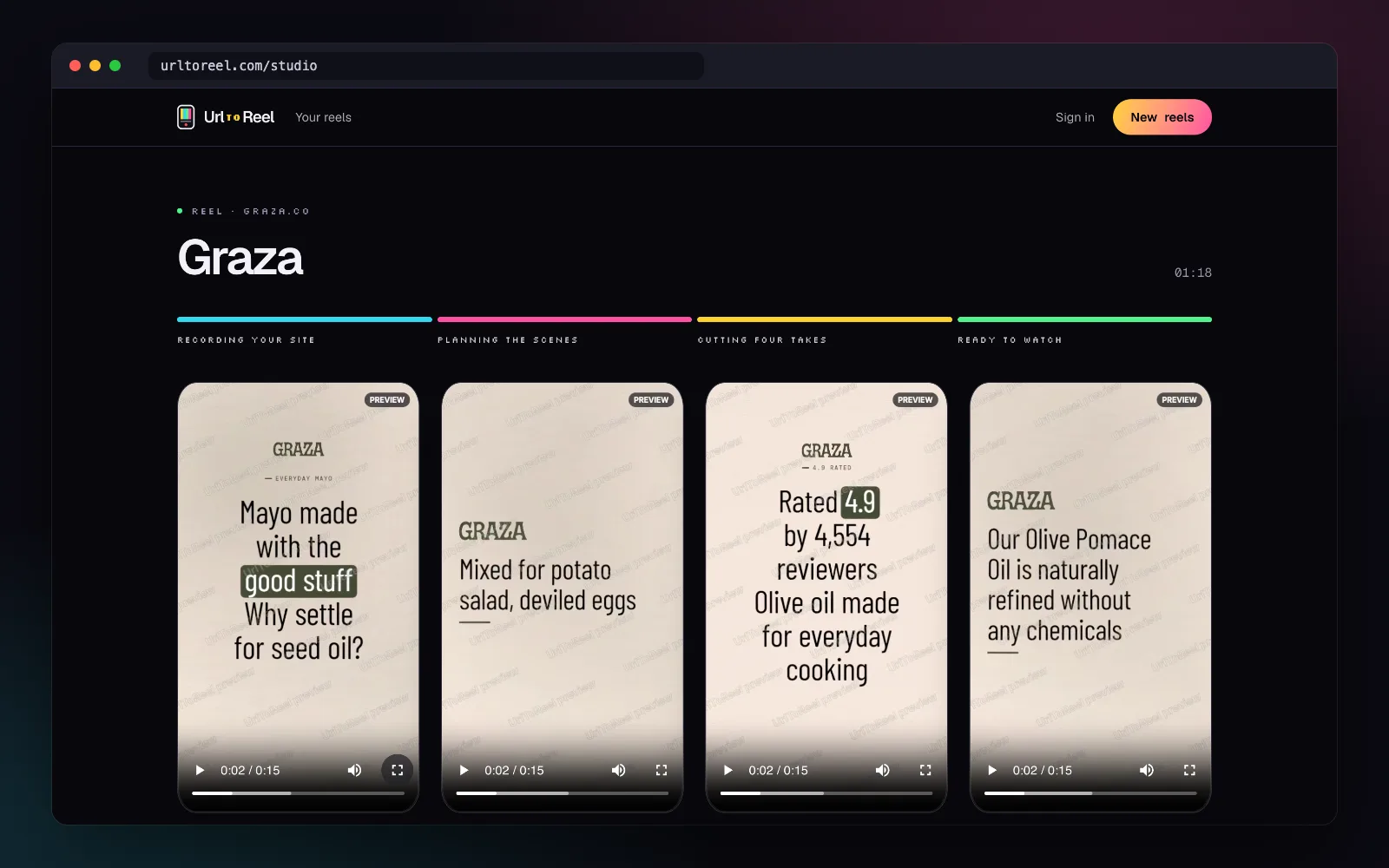
Pick one of the 4 takes
A few minutes later you have 4 videos made from the page, each opening a different way. For the mayo, one opened with a question about seed oils and another with its 4.9 star rating.
- Step 4
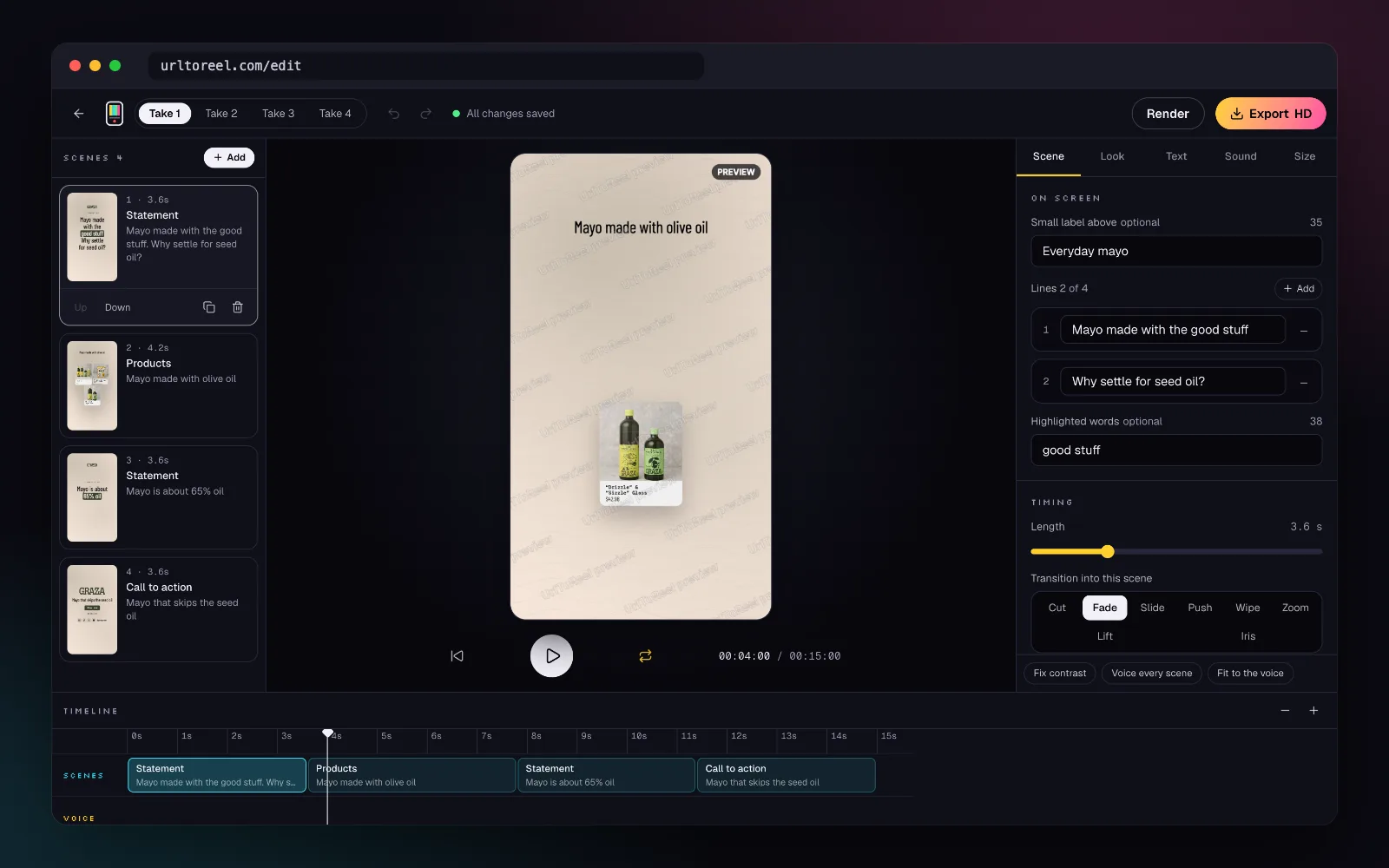
Edit it and download
Change any word, colour, song or scene. Editing is free. When it looks right, use 1 HD download to get it in full HD without the watermark.
2 Shopify product pages, turned into videos
Both came from the product page link alone. I added no photos and no text.
Graza Olive Oil MayoReel · Clean · 15s Graza Olive Oil Mayo
Opens on its 4.9 rating from 4,554 reviewers, shows the Fancy Mayo, Garlic Aioli and olive oil chips with their prices, then 3 ways to use it.
graza.co/products/original-mayoOlipop Pomegranate SparkleReel · Clean · 15s Olipop Pomegranate Sparkle
Opens on 6g of fiber per can, shows three flavours at their store price, then the numbers from the page: fiber, calories, sugar and juice.
drinkolipop.com/products/pomegranate-sparkle
Made from the public product pages of Graza and Olipop. UrlToReel isn't affiliated with either brand.
Why start from the product page
Your store already wrote the script
The product name, photos, price, reviews and reasons to buy are on the page already. The takes use those, so the video matches what a shopper sees after the tap.
Nothing to install
There is no Shopify app and no access to your admin. It reads the public pages any visitor can see, so nothing in your store changes.
A shape for every spot
If your product photos are square, the square take sits neatly beside them in the product gallery. The vertical one is for Reels, TikTok and Shop.
Where a product video goes in your Shopify store
The product page is the obvious place, because that's where people decide. In your Shopify admin, go to Products, open the product, and in the Media section click Upload new and pick the MP4. Shopify takes .mp4, .mov and .webm files up to 10 minutes long and 1 GB, so a 15 second take is nowhere near the limit.
Think about where in the media it sits. Shopify treats the first media item as the product's featured media, and that's the one shown on collection pages, in the cart, at checkout and on your home page. I keep a clear photo first and put the video second or third, so collection grids still show the product and not a paused frame. You can drag media into a new order in the Manage media view.
A collection page can carry a video too. Shopify's rich text editor can embed one in a collection description, but the video has to be on YouTube or Vimeo first, then pasted in as embed code with the Insert video button. A take made from that collection, with the range on cards, fits there well.
For the home page it depends on your theme. If yours has a video section, add it in the theme editor and use the widescreen take, made from your best seller or your main collection.
Running ads for these products? See which page to link and how to time a sale
How UrlToReel reads a Shopify store
Shopify stores publish a public list of their products, the same data your theme uses. When you paste a page from a Shopify store, the app reads that list as well as the page itself. That's why product names and prices come through exactly, with no guessing from the layout. A few details change what you'll see:
- Products your pasted page links to come first, in the order they appear on it. On a collection page that is the collection's own sort order. On a product page it is usually the related products your theme shows lower down.
- Each card uses the product's first image. If that image is a lifestyle shot with a busy background, the card shows that. A clean packshot first reads better at phone size.
- The price comes from the first variant that's in stock. If your smallest size is sold out, the card shows the next available one's price.
- Gift cards, shipping protection, warranties, donations and sample packs are skipped, so they never turn up as products.
- Up to 8 products are picked up from a page. Photos under 200 pixels on their short side are left out, and the same photo used twice appears once.
What the Graza and Olipop pages turned into
I pasted graza.co/products/original-mayo. The take opens on the Graza name with a small 4.9 rated line, then the page's own review count, rated 4.9 by 4,554 reviewers, with olive oil made for everyday cooking under it. The product cards came next under the heading Olive Oil Mayo: the Fancy Mayo at $10.99, the Garlic Aioli at $9.99 and the olive oil potato chips at $5.99. Those are other products from the store, not the original mayo itself. If you want a video that stays on one product, delete the cards scene in the editor.
Then the page's section on how to use it became three numbered steps: pick your flavor, mix it in, spread or dollop, each with the page's own short line. It ends on everyday cooking, made with olive oil, a Shop now button, graza.co typed out and Graza's social handles.
From drinkolipop.com/products/pomegranate-sparkle the take opens on 6g fiber in every can, with fancy enough for guests below it. Three cans follow under the heading Chill it and sip: Caramel Apple, Blackberry Vanilla and Pomegranate Sparkle, each at $35.99. Then four numbers from the page count onto the screen: 6g of fiber, 35 calories and 4g of sugar per can, and 11% juice.
Notice what those cards don't say. A card shows a name and a price and nothing more, so $35.99 sits there with no pack size. If a price on your store is for a multipack, put the count in the product title, or shoppers will read it as the price of one.
Product videos on your store's Instagram, TikTok and Shop
If you post on both Instagram and TikTok, the vertical size works for both. Name the product in the caption so people can search for it in your store.
If your store uses Shopify's Facebook and Instagram channel and your Instagram account is approved for shopping, you can tag products in posts and stories. Shopify's help page notes one catch: product tags in stories only work on image stories, not video ones. For a video story, use a link sticker to the product page instead.
If you also run the Shop channel, connecting Instagram imports your reels from the last 90 days as Shop posts, and new ones come in by themselves. You can post a video straight to Shop as well. Shop posts take videos up to 2 minutes and 100 MB, with up to 10 tagged products or 1 collection.
Getting a Shopify product page ready
- Take the store password off first. While the password page is on, nobody can see your products, and that includes the app.
- Short, specific lines in the description give a take more to use than one long paragraph.
- Show your reviews on the page if you have them. A rating and a count, like Graza's 4.9 from 4,554 reviewers, makes a strong opening line.
- Fix old prices and typos before you paste the link. The take copies the page as it is.
- Use a collection link when you want to show a range, and sort the collection in the order you want the cards.
Who is behind this
I'm Masab Farooque, and I build and run UrlToReel myself. Bug reports, feature requests and support emails all come straight to me.
If something in your reels looks wrong, write to me and I'll look at it myself. hello@urltoreel.com
Masab Farooque, maker of UrlToReel
Good to know
Something else? Ask us directly
Do I need to install a Shopify app?
No. There is nothing to install and it never asks for access to your store. It only reads your public pages, the same as any visitor.
Can I add a YouTube link to the product instead of uploading the file?
Yes. Shopify product media accepts YouTube and Vimeo links. A YouTube Shorts link will not work as it is, so change youtube.com/shorts/ID to youtube.com/watch?v=ID first.
Will it work with my theme?
Yes. It reads your store the way a shopper sees it, so the theme makes no difference. Product data comes from your store, so even a heavily customised theme gives the right names and prices.
Can I use a collection page instead of a product page?
Yes. A collection page gives a video about the range, with several products on cards. A product page gives one about a single item.
What if a product sells out after I make the video?
The video shows the store as it was when you pasted the link. Delete the products scene in the editor before you post, or make a fresh set when it is back in stock.
How much is a product video?
Making the 4 takes is free. Downloading the one you want in full HD uses 1 HD download, so a product video costs $2.50, $2 or about $1.67 depending on the pack. Unused downloads never expire, so a pack lasts across new arrivals.
Try it on your own site
It's free until you download, and it takes about 5 minutes.